Schedule Today allows you (the admin or scheduler) to release a team member from a shift in one of two ways:
Release a team member from a shift through the dashboard
1. Navigate to the Dashboard page then filter by Community and filter by Shift Status (we recommend assigned and accepted shifts).

2. Locate the shift (with the appropriate date and time) and team member that you wish to release, and click on the appropriate shift card.

3. Click Release

4. Provide the Reason for Release
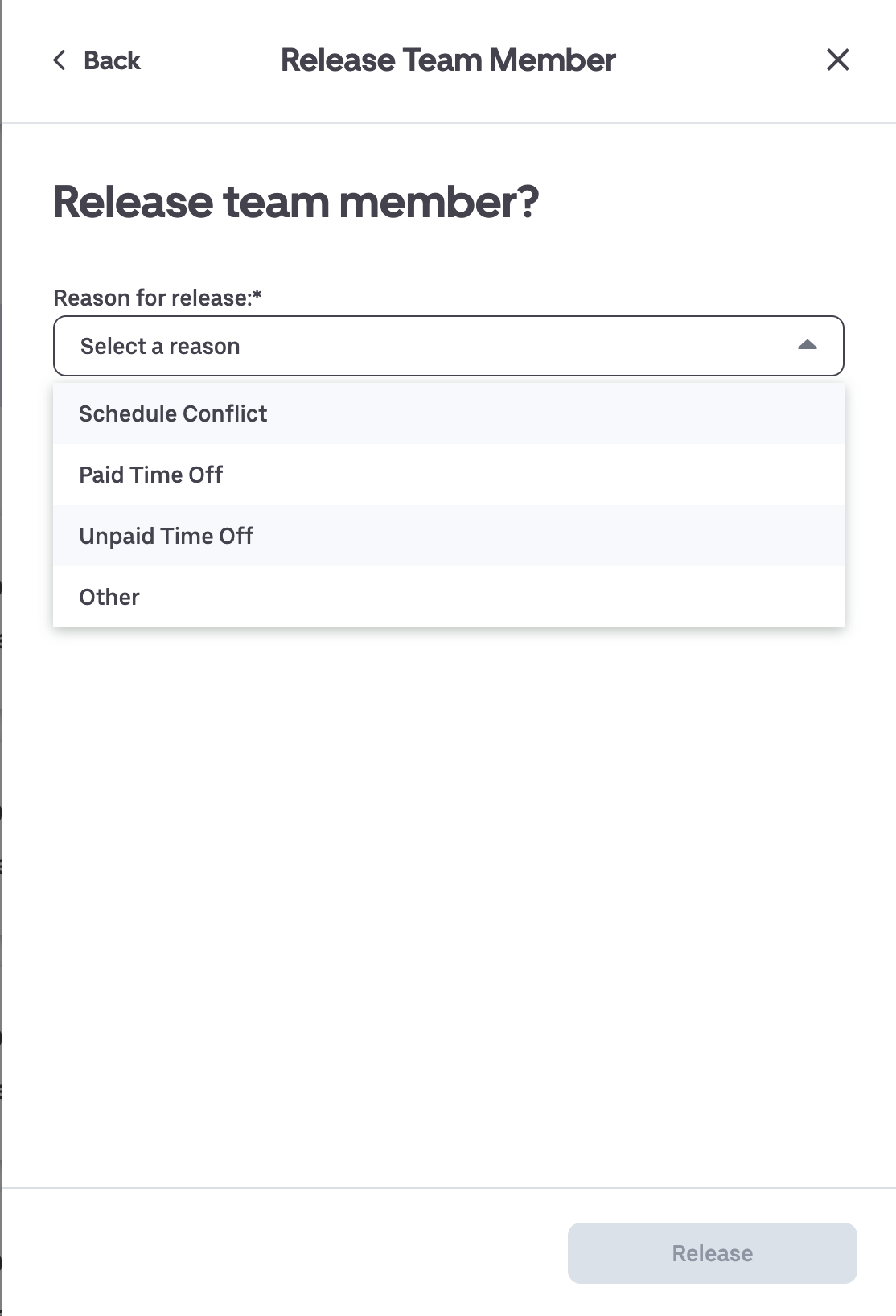
5. Click Release

Release a team member from a shift through the shifts page
1. Navigate to the Shifts page then filter by community and filter by Shift Status (we recommend assigned and accepted shifts), shift status and filter by Position.

2. Locate the shift (with the appropriate date and time) and the team member that you wish to release.
Note: by clicking on a particular date in the calendar view you expand your viewing options, or you can simply review the shifts in List View.

3. Click on the appropriate shift card to review the details of the shift

4. Click Release to release the shift and provide a Reason for Release.
5. Click Release